Products:
The latest news:
|
4t Tray Minimizer Free/Pro - Minimize any application to system tray!
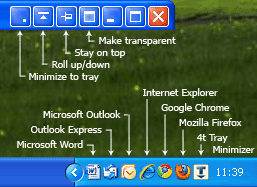
4t Tray Minimizer is a lightweight but powerful window manager, which helps you to free up space on the desktop and the taskbar via the following actions:
- Minimize To Tray - any application can be minimized to the system tray.
- Roll Up/Roll Down - you can roll up any window to its title bar.
- Make Transparent - you can make a window semi-transparent and take a look at foreground windows.
- Hide/Show The System Tray - hides the system tray.
The Pro version allows you to control the behavior of your favorite applications: how and when they will be minimized to tray; customize its keyboards shortcuts for launching, restoring or hiding actions; minimize them to tray at start up and more...
Some benefits of the Pro version:
- Would you like to hide your favorite program instead of closing, because it is loading for a long time and you don't want to wait while it will be launched next time? You can redefine the reaction to its close button click and it will be minimized to tray instead of closing. Next time it will be restored much more quickly.
- You can define one hot key to launch, restore and hide the favorite application. When you press the hot key you don't care where your favorite application right now is: it will be launched if it was not running yet; it will be brought up if it was inactive or minimized to tray
The Free and the Pro versions let you to customize the hot keys both for the standard windows actions and for 4t Tray Minimizer actions:
- Minimize All Windows hot key, Minimize Window and Maximize Window hot keys
- Minimize To Tray hot key, Hide Window hot key, Minimize All Windows To Tray hot key, Roll Up/Roll Down hot key and more...
All Features:
Desktop Enhancements
- Ability to customize the action when clicking on the standard window buttons.
- Additional title bar buttons: Minimize to tray, Roll up/down, Stay on top and Make transparent. These buttons are customizable - you can set up their order or turn off any of them.
- Customizable additional items into a window menu. You can call the window menu by right click on the window title bar or by click on the top-left window icon.
- Additional items into a taskbar pop up menu, which can be activated by right click on the taskbar button (Shift + right click under Windows 7).
- Hides system tray icons. 4t Tray Minimizer can hide the system tray icons to let you easily read the buttons on your taskbar. To make the system tray reappear, simply place the mouse cursor at the edge of the task bar, where the system tray is hidden.
- Launches Desktop programs from the system tray. You can quickly launch the Desktop icons even if a lot of windows occupy Desktop.
Application and window actions
- Minimize to tray. You can minimize to tray such well-known applications as Outlook, Outlook Express, Internet Explorer, Firefox, Chrome, Thunderbird, Sunbird and others. 4t Tray Minimizer lets you to use various ways to minimize application to tray: extra Minimize to tray titlebar button; left/right click on the minimize button; left click on the close button; Minimize to tray keyboard shortcut; additional Minimize to tray item in a window menu; auto-minimization to tray when an application is launched at startup, when it stays inactive or when it is minimized.
- Hide an application (without showing its tray icon). You can hide any application without displaying its icon into the system tray.
- A lot of ways to restore an application which was minimized to tray.
- Minimize to tray all applications and Restore all application. You can quickly minimize to tray and restore all running applications.
- Roll up/Roll down. You can roll up any window to its title bar.
- Make transparent. You can make semi-transparent any window to take a look at background windows.
- Stay on top. You can make any important window always on top.
Favorites (Pro version)
- You can quickly activate and bring up the favorite application. You can not worry about the current state of the application. If it is not running yet, it will be launched. If it was minimized or hidden, it will be restored.
- You can fully customize how you want to minimize your favorite application to the system tray. For example, you can override the standard reaction: on the minimize button, on the Close buttons and on the Alt+F4 hot key.
- 4t Tray Minimizer can minimize application to tray at startup or at other triggers: when the application is becoming inactive; when the application is minimized to taskbar.
- Ability to hide task bar button for a favorite application
- Some application can restore itself from the minimized state. 4t Tray Minimizer allows you to block self-restoration if the application was minimized to tray.
- Quick launch. You can easy launch new copy of your favorite application.
- The Only one instance can be launched option allows you to limit instances of your application. When the second instance is launched, 4t Tray Minimizer terminates it and brings up the first instance of the application.
- You can customize Minimize to tray / Restore hot key and quickly switch your application between its minimized to tray and foreground states. Also if you use Launch if not running option, the same hot key is able launch your application if it isn't running yet.
- Minimize to tray all instances of the favorite application. You can easy minimize all instances of the favorite application to the system tray. For example, a few windows of Internet Explorer or Firefox may be easy minimized to tray. Of course, you can restore these hidden instances as soon as you wish.
Hot keys
for the active window:
- Maximize window keyboard shortcut maximizes the active window
- Minimize window keyboard shortcut minimizes the active window
- Minimize to tray keyboard shortcut
- Hide an application without showing its tray icon keyboard shortcut
- Roll up/down keyboard shortcut
- Make transparent keyboard shortcut
- Stay on top keyboard shortcut
for all windows:
- Minimize all windows keyboard shortcut minimizes all windows to the taskbar
- Minimize all windows to the system tray keyboard shortcut
- Restore all hidden windows keyboard shortcut
for the favorite application:
- Launch the favorite application keyboard shortcut
- Minimize the favorite application to the system tray keyboard shortcut
- Restore the hidden favorite application keyboard shortcut
- Minimize all instances of the favorite application (to the taskbar) keyboard shortcut
- Minimize all instances of the favorite application to the system tray keyboard shortcut
- Restore all instances of the favorite application keyboard shortcut
|
Current version: 6.07
Setup size: 1.85 Mb
Released: 8 Aug, 2017
System requirements:
- Windows 10 (32/64 bit)
- Windows 8.1 (32/64 bit)
- Windows 8 (32/64 bit)
- Windows 7 (32/64 bit)
- Windows Vista (32/64 bit)
- Windows XP (32/64 bit)
4t Tray Minimizer Free 6.07:
Buy 4t Tray Minimizer Pro
|